
Why Plugin Updates Break WordPress Sites (And How to Prevent It)
Updates should reduce risk, not create outages. Understand why breaks happen and how staging, backups, and selective updates keep you safe.
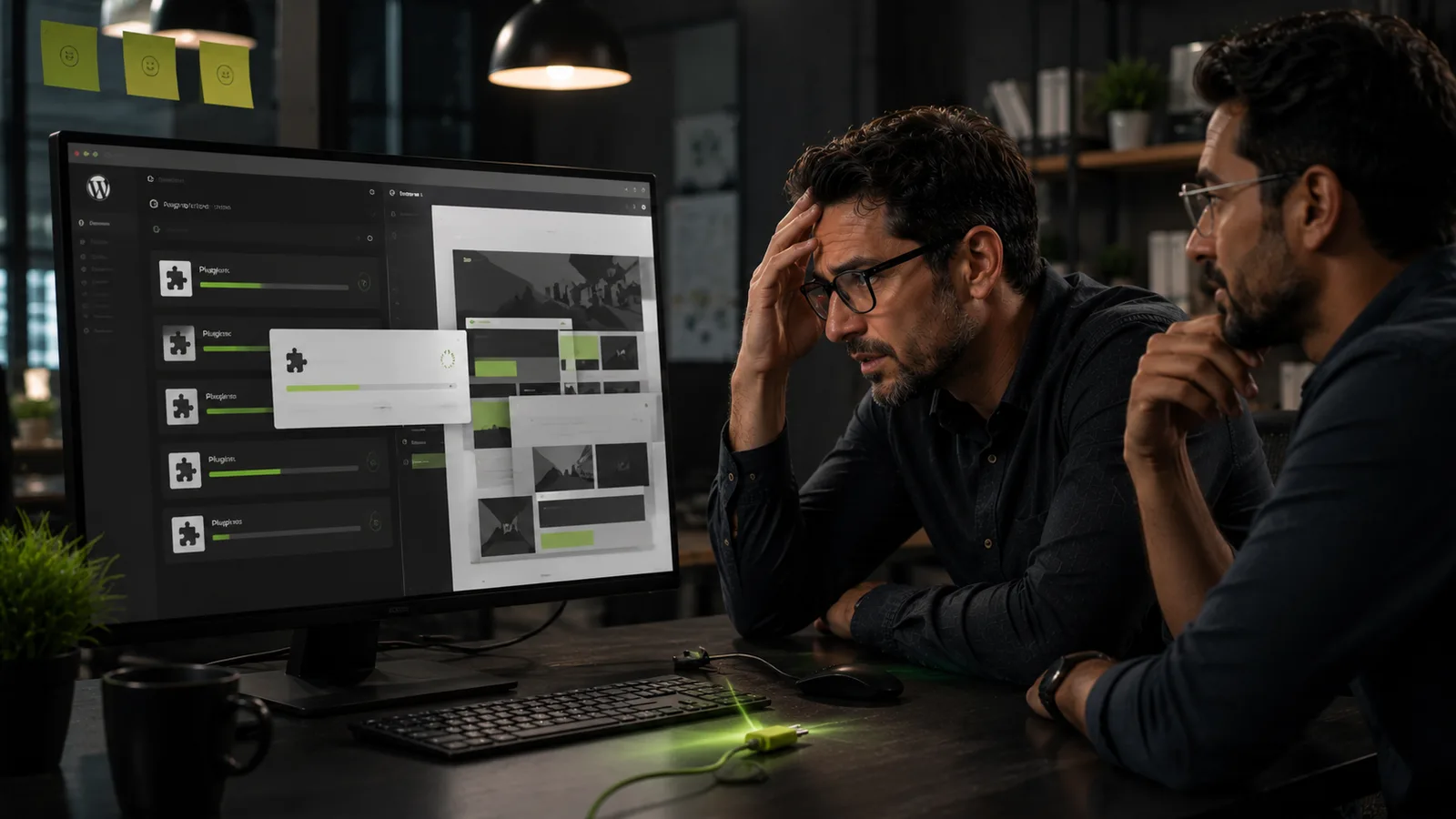
WordPress updates exist to patch security holes and keep your site compatible with modern browsers. Yet the phrase "I just ran updates and the site broke" is one of the most common distress calls I hear from business owners. The breakage feels random. Sometimes the homepage whitescreens. Sometimes only the booking step for van size stops loading. Sometimes forms submit but emails vanish.
Updates do not break sites by malice, they break because WordPress is an ecosystem of independently maintained code. Your theme, twelve plugins, hosting PHP version, and custom tweaks all interact. When one component changes, others may not keep pace. Understanding why that happens turns updates from a gamble into a managed process, one that belongs in every serious maintenance plan.
This guide explains the usual failure patterns, how to update without taking your quote flow offline on a Saturday, and when delaying an update is more dangerous than testing it carefully. For the security case for staying current, see our WordPress security checklist and service business WordPress guide.
Why updates matter for revenue
Deferring updates feels safe because yesterday's site still loads. That comfort is misleading. Outdated plugins are how most hacked service sites get in, attackers scan for known vulnerabilities in popular form plugins, page builders, and WooCommerce extensions. A site compromised through an old plugin costs far more than an hour of staged testing.
Updates also keep payment gateways, maps APIs, and booking logic working as external services change requirements. Stripe, Google Maps, and email providers evolve; plugin authors release compatibility fixes. Skip too many cycles and you discover the problem on the day a customer tries to pay a deposit, not during a calm Tuesday maintenance window.
Warning
Never treat "if it ain't broke don't fix it" as security policy. Owners who skip updates for a year often pay for emergency cleanup, blacklist recovery, and rebuilds, see Google blacklist recovery for what follows a serious infection.
How breaks actually happen
WordPress core, themes, and plugins share hooks, extension points where code runs in a defined order. Plugin A adds a booking field; Plugin B modifies checkout; the theme wraps both in a custom template. When Plugin B releases a major version that renames a function or changes JavaScript load order, the theme may still call the old hook. Result: blank step in the wizard or a JavaScript error on mobile only.
Hosting matters too. Your host may upgrade PHP from 7.4 to 8.2 without you noticing. Code that was merely deprecated suddenly throws fatal errors. Premium plugins usually adapt within weeks; abandoned plugins never do, and those are the ones still sitting in your dashboard "just deactivated."
Major versus minor releases
Minor updates (e.g. 6.4.1 to 6.4.2) typically patch bugs and security issues with low breaking risk. Major updates (plugin 2.x to 3.x, WordPress 6.x to 7.x when it arrives) may rename settings, restructure admin screens, or require new PHP. Major releases deserve staging tests; minor releases on well-maintained stacks often ship after a quick backup.
Common break patterns
When owners describe "the site broke," these are the underlying patterns I look for first:
- White screen of death (WSOD), PHP fatal error, often after PHP version jump or incompatible plugin. Entire site or one admin page.
- Layout collapse, page builder or theme update changed CSS/structure; homepage looks unstyled or mobile menu fails.
- JavaScript console errors, booking steps, maps autocomplete, or date pickers stop after a plugin updates jQuery-dependent code.
- Form or email failure, form plugin update conflicts with SMTP plugin; success message shows but nothing arrives. Related: broken WordPress forms.
- Checkout/payment errors, WooCommerce or gateway plugin mismatch; often appears only at final payment step.
- Admin-only break, front-end fine, cannot save pages; still urgent if you cannot fix typos or prices.
Booking-heavy sites, moving, skip bin hire, trades with structured quote forms, fail in ways generic brochure sites do not. Always test the full conversion path, not just the homepage hero.
Practical tip
After any update batch, run one complete test booking or quote submission on mobile data (not office Wi‑Fi). Mobile Safari catches JavaScript issues desktop Chrome misses.
Update types and risk levels
Not every update deserves the same process. Use this table to plan your monthly maintenance session:
| Update type | Typical risk | Staging recommended? | Test focus after deploy |
|---|---|---|---|
| WordPress core (minor) | Low–medium | Optional on simple sites; yes on booking sites | Admin login, key pages, forms |
| WordPress core (major) | Medium–high | Yes | Full site + plugins compatibility |
| Security patch (plugin) | Low if single plugin; medium if widely used | Yes for checkout/forms; often quick | Feature that plugin controls |
| Plugin major version | High | Yes, always | Entire funnel that plugin touches |
| Theme update | Medium–high if customised | Yes if custom CSS/child theme | Layout, mobile, key templates |
| PHP version (host) | High on old stacks | Yes, mandatory | Everything; check error logs |
| Abandoned plugin (no update in 12+ months) | Replace, do not update | Plan migration on staging | Equivalent replacement feature |
The staging-first workflow
Staging is a copy of your site on a hidden URL where you can break things safely. Good hosts offer one-click staging; agencies maintain staging as part of retainers. The workflow is straightforward:
- Refresh staging from production so you test against real content and settings.
- Apply updates on staging, core, then plugins one group at a time if you are debugging, or all at once if routine monthly batch.
- Smoke-test admin, homepage, top landing pages, full booking/quote flow, form submission, payment if applicable.
- Check error logs on staging for PHP warnings you might not see visually.
- Deploy to production during low-traffic hours with backup already taken.
- Re-test production, staging success does not guarantee production identical (cache, CDN, different API keys occasionally differ).
No staging available? At minimum take a full backup immediately before updates and schedule work when you can monitor for an hour, not five minutes before your busiest booking day.
Reading changelogs without a developer background
Changelogs look intimidating but you only need a few phrases to watch for: "breaking change," "requires PHP 8," "removed deprecated hook," "major rewrite," or "minimum WordPress version." Those flags mean schedule extra testing time. Phrases like "security fix" or "patch for CVE-XXXX" mean prioritise the update, ideally same week, even if you must test quickly on staging first. If a plugin changelog is empty for months while WordPress core has moved two major versions, treat the plugin as abandonment risk rather than stability comfort.
Keep a simple spreadsheet: plugin name, current version, last updated date, business function (forms, booking, SEO, cache). During monthly maintenance, scan changelogs only for plugins marked business-critical. That ten-minute habit prevents both surprise breakages and unnecessary fear of harmless patch releases.
Should you enable auto-updates?
WordPress can auto-update minor core releases and, per plugin, individual plugins. For a low-traffic brochure site with solid backups and uptime monitoring, limited auto-updates reduce security lag. For a site where online skip bin booking or man and van quotes drive revenue, auto-updating booking plugins without human verification is risky. A common compromise: auto minor core, manual plugin batches monthly on staging.
Backup and rollback discipline
Every update session starts with a verified backup, files and database, stored where you can restore in one action. Know how to restore before you need to; panic restores cause mistakes.
If production breaks after deploy:
- Restore backup from immediately pre-update if customer impact is severe.
- Identify which component caused the break by comparing staging notes or re-applying updates one at a time on staging.
- Contact plugin vendor support or your developer with specific error messages, not just "it broke."
- Document the hold, which plugin version is pinned and why, so the next person does not blindly update again.
Pinning a vulnerable plugin version is a temporary bridge, not a strategy. Pair pins with a plan to replace or patch within days, especially if the hold relates to a known security issue covered in malware signs.
Selective update strategy
Updating everything blindly is as problematic as updating nothing. A sensible monthly rhythm for service businesses:
- Week 1: Review available updates; read changelogs for booking, form, and payment plugins.
- Week 2: Apply batch on staging; full regression test.
- Week 3: Deploy to production; monitor analytics and form notifications for 48 hours.
- Week 4: Remove any plugins flagged for replacement; update internal runbook.
Security emergencies, active exploit in a plugin you use, compress that timeline. Patch on staging same day if possible, production same day if exploit is critical, with backup ready. Non-critical cosmetic plugin updates can wait for the normal window.
Pre-update checklist
- Backup completed and downloadable
- Staging matches production
- Changelogs skimmed for breaking changes
- Low-traffic window scheduled
- Test script ready (form + booking + payment)
- Rollback steps documented
- Someone available to monitor for 60 minutes post-deploy
When to get help
Some breaks are quick fixes, re-save permalinks, clear cache, deactivate the last plugin updated. Others expose technical debt: unmaintained custom code, twelve overlapping plugins, or a theme that has not been updated since 2019. Signs you need professional help rather than another hour of toggling plugins:
- White screen persists and host error logs show fatal errors in files you do not recognise.
- Booking or payments fail intermittently, harder to debug than total failure.
- Every update breaks something different; the stack is fundamentally unstable.
- You are choosing between security patches and a working checkout with no clear path.
An audit clarifies whether the site needs stabilisation, plugin consolidation, or phased rebuild. A strategy session helps prioritise if budget is limited, fix revenue paths first, cosmetic admin issues second.
Choosing a partner who understands updates as business continuity, not just ticket closing, overlaps with how to choose a WordPress developer. Ask how they stage, how they report, and what they test after every deploy.
When deferred updates become technical debt
Sites that have not updated in eighteen months rarely break on one plugin, they break on the cumulative gap. PHP moves forward, JavaScript libraries deprecate, database schemas shift. Owners experience this as "we updated one small thing and everything fell over." The single update was the trigger, not the sole cause. Recovery then requires phased updates, temporary compatibility plugins, or controlled rebuilds, far more expensive than monthly staged batches would have been.
If you inherit a site from a previous owner or agency, assume the update backlog is unknown until proven otherwise. Budget the first quarter for stabilisation: audit plugin list, remove dead weight, establish staging, run security checklist, then enter normal monthly rhythm. Skipping that foundation and jumping straight into marketing tweaks repeats the cycle that made updates feel dangerous in the first place.
Conclusion
Plugin and core updates break WordPress sites when incompatible code meets insufficient process, not because updates are inherently bad. Staging, backups, selective timing, and testing the full quote-to-inbox path turn updates into routine maintenance instead of roulette. Skipping updates trades a small risk of temporary breakage for a larger risk of security incidents, failed payments, and emergency rebuilds.
Build the habit into your monthly care plan, document what works for your stack, and treat booking and form plugins as revenue-critical infrastructure. When something does break, restore calmly, diagnose on staging, and fix forward, your customers' next enquiry depends on it.
Frequently asked questions
- Should I auto-update WordPress plugins?
- Auto-updates can work for low-risk sites with solid backups. Revenue-critical booking sites should test updates on staging first.
Need help with this?
Let's review your setup
I help service businesses fix WordPress, bookings, security, and performance, with systems that support revenue, not just launches.
Related articles
 Maintenance
Website Maintenance Plan: What Every Business Needs Monthly
Maintenance is how you avoid emergency rebuilds. Here is what to check every month, and what to watch weekly if bookings run through your site.
Read article Security
WordPress Security Checklist for Business Owners
Security is not a one-off plugin install. Use this checklist to harden access, backups, monitoring, and forms without needing a security degree.
Read article Conversion
Broken WordPress Forms: Why Leads Vanish Silently
The form says thank you. Your inbox stays empty. Silent form failure is one of the most expensive bugs on service websites, and the easiest to miss.
Read articleReady to talk?
Book a strategy session or send a message. I'll respond with a clear next step.