
WordPress Security Checklist for Business Owners
Security is not a one-off plugin install. Use this checklist to harden access, backups, monitoring, and forms without needing a security degree.
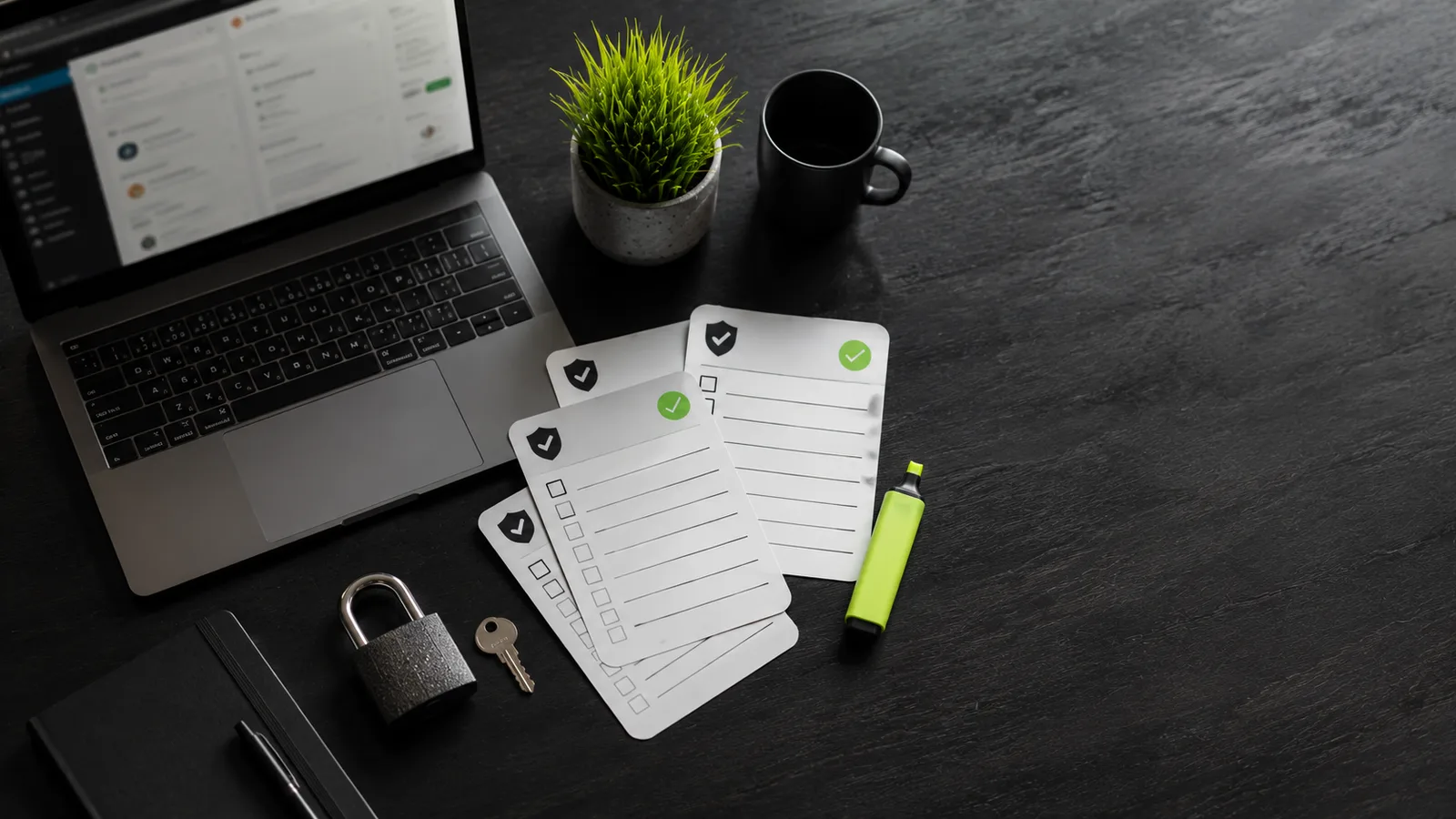
WordPress security advice online swings between "install this one plugin and relax" and fifty-page hardening guides written for sysadmins. Neither helps a business owner who needs the site to generate calls, quotes, and bookings, without becoming a part-time security engineer.
This checklist is the practical middle ground I give clients after audits: actionable items grouped by risk, with clear ownership. You can work through it in an afternoon with your developer or agency, then revisit quarterly. Print it, stick it in your operations folder, or hand it to whoever holds the maintenance retainer. Security for service businesses is mostly discipline, not exotic tools.
For context on why WordPress sites in your industry need this level of care, see our WordPress for service businesses guide. If you suspect active compromise, start with malware warning signs before hardening alone.
The right security mindset
Small sites get hacked because they are easy, not because attackers care about your turnover. A compromised WordPress install becomes a spam relay, a phishing host, or a stepping stone to richer targets. Your customers do not care that you only have twelve pages, they care that your contact form did not steal their details.
Security is a layer cake: hosting quality, software hygiene, access control, backups, and monitoring. One missing layer undoes the others. A premium security plugin on cheap shared hosting with admin/admin credentials still fails. Conversely, solid basics without a £200/month enterprise suite protect most service business sites adequately.
Practical tip
Assign one person, owner, office manager, or technical partner, as security owner. "Everyone" maintaining the site usually means nobody checks backups until the day they are needed.
Access and accounts
Credential theft is the most common entry path I see on owner-managed sites. Former staff retain admin access. The same password is reused across hosting, WordPress, and email. Login URLs stay at the default /wp-admin with no rate limiting.
What to verify
- Every WordPress user has the lowest role that fits their job, not Administrator by default.
- Remove accounts for people who no longer work with you, including agency contractors from projects finished years ago.
- Use strong, unique passwords stored in a password manager, not a spreadsheet on the desktop.
- Enable two-factor authentication for all Administrator accounts.
- Limit login attempts or use a reputable security plugin that blocks brute force.
- Change default "admin" usernames if they still exist from older installs.
Document who can access what. When an employee leaves, revoke access the same day, hosting panel included, not just WordPress.
Shared versus managed hosting for business sites
Shared hosting keeps costs low and works for low-traffic brochure sites with simple contact forms. Once you add WooCommerce, multi-step booking wizards, live maps, and multiple staff editing content concurrently, resource limits and neighbour noise on shared plans become security and uptime risks. Managed WordPress hosting typically includes staging, automatic core updates, malware scanning, and support staff who recognise WordPress-specific issues, not generic ticket responses asking you to "clear your cache."
Neither option removes your responsibility for plugin choices and admin passwords. Managed hosting raises the floor; it does not replace the checklist. If you are unsure whether your current plan matches your booking volume, an strategy session can map hosting to realistic traffic and conversion goals without overselling infrastructure you do not need yet.
Hosting, SSL, and server basics
Your host is the foundation. Budget shared hosting can work for brochure sites; booking-heavy WordPress with maps, payments, and real-time availability needs resources and support quality that cheap plans do not provide.
| Area | Minimum standard | Why it matters |
|---|---|---|
| SSL certificate | Valid HTTPS on all pages, auto-renewing | Trust, form security, browser warnings if expired |
| PHP version | Supported release (not end-of-life) | Old PHP is both slow and vulnerable |
| Server isolation | Reasonable neighbour isolation on shared plans | Another site on the server getting hacked can affect yours |
| Email sending | Proper SMTP, not default PHP mail() | Reduces spoofing; unrelated to hacks but affects trust |
| File permissions | Not world-writable directories | Upload exploits gain foothold when permissions are loose |
Confirm your domain DNS has not been pointed elsewhere without your knowledge, a rare but devastating hijack vector. Registrar accounts deserve the same password rigour as WordPress admin.
Plugins, themes, and updates
Every installed plugin is code that runs with near-full site privileges. The goal is fewer, maintained, essential plugins, not a trophy cabinet of "might need someday" extensions.
- Delete deactivated plugins and unused themes, especially default Twenty-* themes if you are not using them for testing.
- Before updating, confirm you have a recent backup and, for complex sites, a staging copy to test on.
- Update core, plugins, and themes on a schedule, monthly at minimum for business sites. Weekly if you take online payments or high-value bookings.
- Avoid nulled (pirated) themes and plugins; they routinely include backdoors.
- Research plugin reputation: last update date, support responsiveness, install count relative to niche.
Updates can break sites, we explain why and how to prevent that in why plugin updates break WordPress. That is not an argument against updating; it is an argument for staging and backups, which belong on this checklist too.
Warning
Auto-updates for everything sound convenient until a booking plugin update conflicts with WooCommerce during your busiest week. Automate minor core updates if you wish; test plugin updates that touch checkout, forms, or pricing logic.
Backups and recovery
Backups you have never restored are faith, not insurance. At least once a year, or after any major change, perform a test restore to staging to confirm files and database come back intact.
- Frequency: daily for active sites with bookings; weekly minimum for brochure sites.
- Retention: keep multiple points, last 7 daily, last 4 weekly, so you can restore from before an infection window.
- Location: off-server storage (cloud bucket, separate host). Backups on the same hacked server are useless.
- Scope: full files plus database; partial exports miss uploads and plugin settings.
If Google has flagged your site, recovery steps are in our blacklist recovery guide. Clean backups shorten that timeline dramatically; missing backups turn a two-day fix into a two-week rebuild.
Monitoring and detection
You cannot watch the site twenty-four hours a day. Lightweight monitoring closes the gap between infection and discovery:
- Uptime monitoring, email or SMS when the site is down.
- Google Search Console email alerts for security and indexing anomalies.
- Periodic external malware scans (monthly is reasonable for most owners).
- File integrity monitoring if your security plugin or host provides it, alerts when core files change unexpectedly.
- Review server email bounce logs if the host reports outbound spam, often the first sign of compromise.
Fold these into your broader monthly maintenance plan so security checks do not slip when you are busy on jobs.
Forms, payments, and customer data
Service businesses collect names, phone numbers, addresses, and sometimes payment details through WordPress forms and booking plugins. That data is valuable to attackers who install skimmers, scripts that copy form fields to external servers.
Form and payment hygiene
- Keep WooCommerce and payment gateway plugins updated; PCI scope is reduced when card data never touches your server (hosted fields, Stripe Checkout, etc.).
- Use CAPTCHA or equivalent on public forms to reduce bot abuse, not a security silver bullet, but it lowers noise and probe traffic.
- Test form delivery monthly; silent failures are common and unrelated to hacking but lose leads. See broken WordPress forms for symptoms.
- Limit stored customer data in WordPress to what you need; export and delete old entries per your privacy policy.
- Restrict wp-admin access by IP if your team works from fixed locations, optional but effective for high-risk sites.
Businesses with custom booking on WordPress, whether skip bin hire or man and van flows, should include a full booking test in any post-update or post-incident verification, not just the homepage.
Printable security checklist
Use this table as a working document. Mark date completed and initials. Review quarterly at minimum; monthly if you process payments online.
WordPress security checklist, print and complete
Site: _________________________ Review date: __________ Completed by: __________
| # | Task | Pass? | Notes / action |
|---|---|---|---|
| 1 | All admin users identified; no unknown accounts | ☐ | |
| 2 | Two-factor authentication enabled for administrators | ☐ | |
| 3 | Strong unique passwords on WP, hosting, FTP, registrar | ☐ | |
| 4 | HTTPS valid on all pages; no mixed-content warnings | ☐ | |
| 5 | WordPress core on supported version | ☐ | |
| 6 | All plugins updated; unused plugins deleted | ☐ | |
| 7 | Unused themes deleted; no nulled software | ☐ | |
| 8 | Automated backups running; last backup verified | ☐ | |
| 9 | Test restore performed in last 12 months | ☐ | |
| 10 | Backups stored off-server | ☐ | |
| 11 | Google Search Console verified; alerts enabled | ☐ | |
| 12 | Uptime monitoring active | ☐ | |
| 13 | External malware scan clean (date: ______) | ☐ | |
| 14 | Login URL protected; brute-force limits in place | ☐ | |
| 15 | File editing disabled in wp-config (DISALLOW_FILE_EDIT) | ☐ | |
| 16 | Forms tested, submission received in inbox/CRM | ☐ | |
| 17 | Payment/checkout flow tested if applicable | ☐ | |
| 18 | Search site:yourdomain.com, no spam URLs indexed | ☐ | |
| 19 | Privacy policy and cookie notice current | ☐ | |
| 20 | Maintenance owner assigned; next review scheduled | ☐ |
Using this checklist with agencies and staff
If an agency or freelancer maintains your site, send them this checklist quarterly and ask for dated confirmation against each row, not a vague "all good" email. Good partners welcome structured accountability; evasive responses are a signal to dig deeper. Internally, train office staff never to create WordPress admin accounts for temporary contractors without an expiry date. Editor role suffices for content updates; Administrator access should be rare and logged.
Store completed checklist PDFs or signed copies where you keep insurance and contract records. Should a data incident occur, demonstrating regular security review supports your diligence narrative with customers, insurers, and regulators, even when no checklist guarantees immunity from attack.
Revisit row 18 after any SEO or content sprint, new landing pages sometimes introduce duplicate paths or accidental noindex tags that have nothing to do with malware but still hurt visibility. Security and findability share the same maintenance calendar.
Want an independent pass against this list? Our website audit covers security alongside performance, SEO foundations, and conversion paths, useful before a busy season or after staff turnover.
Conclusion
WordPress security for business owners is not mysterious. It is strong access control, current software, tested backups, sensible plugin choices, and regular checks that take minutes when they are habitual and days when they are neglected. Use the printable checklist above as a baseline, adapt it to your booking and form stack, and revisit it on a calendar rhythm rather than after the next scare.
Pair hardening with maintenance discipline and safe update practices, and you eliminate most paths attackers actually use against service sites. If gaps on this list surprise you, treat that as useful data, fix them before Google or a customer does it for you. Questions on prioritisation? Get in touch or book a strategy session to align security work with your revenue priorities.
Frequently asked questions
- Do I still need security if my site is small?
- Small sites are often targeted because they are easier and used to relay spam or host malicious redirects. Size does not protect you.
Need help with this?
Let's review your setup
I help service businesses fix WordPress, bookings, security, and performance, with systems that support revenue, not just launches.
Related articles
 Security
Website Malware: Signs Your Business Site Is Compromised
Hacks do not always take your site offline. Sometimes they hide in redirects, spam pages, or stolen form data while you keep trading.
Read article Maintenance
Why Plugin Updates Break WordPress Sites (And How to Prevent It)
Updates should reduce risk, not create outages. Understand why breaks happen and how staging, backups, and selective updates keep you safe.
Read article Maintenance
Website Maintenance Plan: What Every Business Needs Monthly
Maintenance is how you avoid emergency rebuilds. Here is what to check every month, and what to watch weekly if bookings run through your site.
Read articleReady to talk?
Book a strategy session or send a message. I'll respond with a clear next step.